Settings
Customize Dialogix to match your workflow.
Accessing Settings
- Click the Dialogix icon in your toolbar
- Select Settings
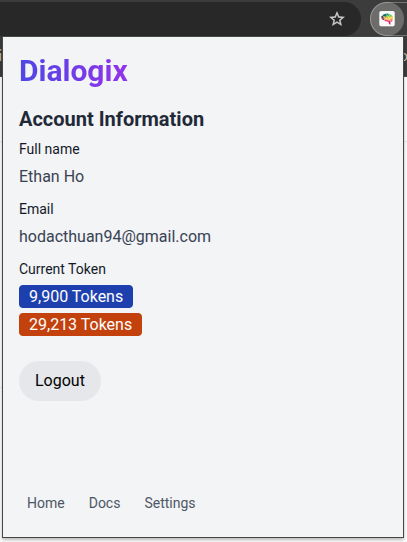
- Browse the settings sections
General Settings
Default Language
Set your preferred language for translations and responses.
- Used in prompts that include
${lang}placeholder - Applies to Translate, Summarize, and other language-aware actions
- Choose from 30+ supported languages
Default AI Model
Select which AI model to use by default:
- GPT-4o Mini — Fast and capable
- Gemini 2.0 Flash — Very fast responses
- DeepSeek V3 — Cost-effective
- GPT-4o — Highest quality
You can override this per-action in advanced settings.
Prompt Settings
Enabled Prompts
Toggle which prompts appear in your action popup:
- Enable prompts you use frequently
- Disable ones you don't need
- All 25+ built-in prompts can be toggled
Pinned Prompts
Pin your most-used prompts to the top of the list:
- Pinned prompts appear first in the popup
- Great for your 3-4 most common actions
- Drag to reorder pinned prompts
Custom Prompts
Manage your custom prompts:
- Create new prompts
- Edit existing ones
- Enable/disable without deleting
- Export/import prompt collections
See Custom Prompts for details.
Advanced Settings
Streaming provides better UX for longer responses.
Max Tokens
Set default maximum response length:
- Lower values = shorter, faster responses
- Higher values = more detailed responses
- Can be overridden per-prompt
Data & Privacy
Clear Data
Options to clear stored data:
- Conversation history — Remove side panel chat history
- Custom prompts — Reset to defaults
- All settings — Complete reset